

As we close out the 2020 football season with a Super Bowl matchup between the last generation’s greatest quarterback and the next generation’s greatest quarterback, rookie fever is quickly approaching. Many people like Peter Howard (Twitter handle: @pahowdy) and Dave Wright (@ff_spaceman) have set up prospect databases that are uniquely useful, and I have posted links to each respective database so you can check them out for yourself.
Peter’s Database: https://www.patreon.com/posts/pahowdy-propsect-46218140?utm_medium=social&utm_source=twitter&utm_campaign=postshare
Dave’s Database: https://www.patreon.com/posts/added-ncaa-szns-46655079
If you are not interested in creating your own database, this is the part of the article where you should stop reading, check out the above databases, and use them to get the outputs that you are looking for. However, if you are like me and want to have your own formatting, create your own formulas, and try to find more effective or predictive stats, I will walk you through the process from gathering data to creating insights.
Step 1 – Gathering Data
Source Data: College Football Reference
Receiving Stats (2020): https://www.sports-reference.com/cfb/years/2020-receiving.html
Rushing Stats (2020): https://www.sports-reference.com/cfb/years/2020-rushing.html
Passing Stats (2020): https://www.sports-reference.com/cfb/years/2020-passing.html
Team Stats (2020): https://www.sports-reference.com/cfb/years/2020-team-offense.html
Follow the link to the receiving stats for example and click on the ‘Share & More’, and from there select ‘Get table as CSV (For Excel)’.
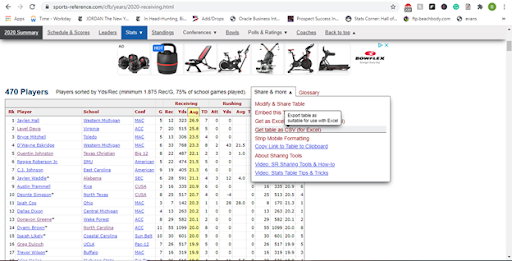
The page will now look slightly different as shown below.
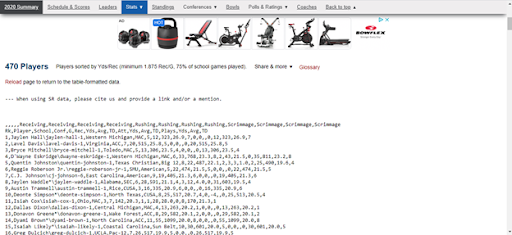
At this point, you are going to highlight from the commas and select all of the data.
Note: CSV stands for comma separate variables, as you can see above between each header field there is a comma, and there are commas on the player statistics level corresponding to each field.
Top of the highlighted field:
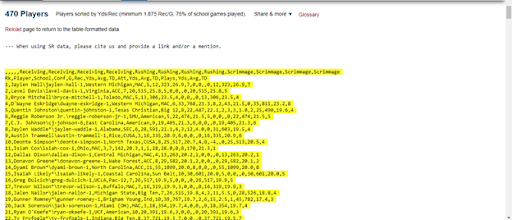
Bottom of the highlighted field:

Note: as you can see College Football Reference automatically applies a filter on the data, for receiving the filter is ‘Players sorted by Yds/Rec (minimum 1.875 Rec/G, 75% of school games played). An asterisk (*) after a player’s name indicates bowl stats are included.’
Copy and paste that data into an excel sheet and label the tab ‘Receiving’.
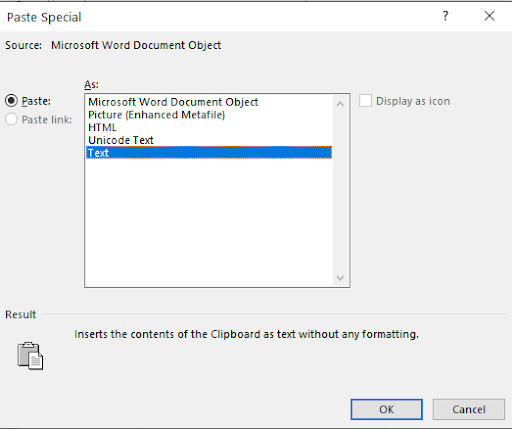
Right-click on the first cell (A1) and select ‘Paste Special’

Then select the option to Paste Special ‘Text’ and click ‘OK’
You will then have one column of data in excel. You are going to want to click on ‘Data’ and select ‘Text to Columns’
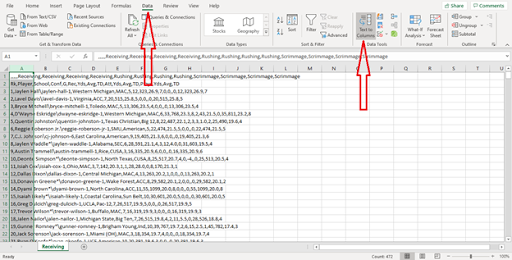
Once the dialogue box opens to step one, we are going to leave ‘Delimited’ selected and click on ‘Next’.

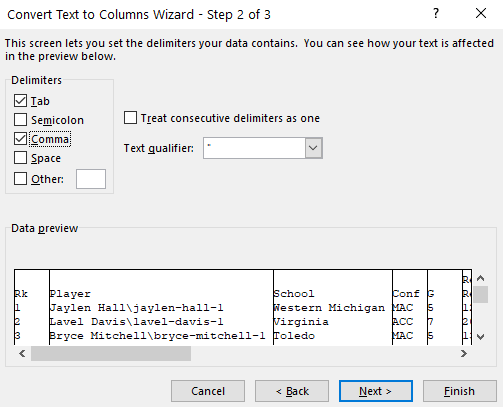
In Step two we are going to click the box for ‘Comma’ and then click ‘Finish’.
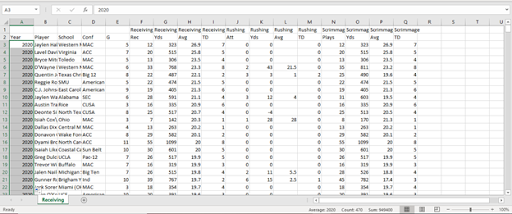
We now have complete data for 2020 college football receiving. However, there is one field that we do not need, and that is the ‘Rk’ field in column A. We are going to change that header (A2) to “Year” then copy and paste 2020 for all players. The excel sheet should now look like this:
Once you have done this, you are going to repeat the process with the Team Stats link and as many other statistics as you’d like.
As you can see for the Team Offense stats, College Football Reference has each team in a per-game average format. I will show you how to get that into totals so that you can create formulas for advanced metrics such as Dominator Rating and Yards per Team Pass Attempt.
The per game average Team Stats will take up columns D through X, with column A being the column that you copy and pasted the appropriate year, column B reflects the school, and column C reflects games played. You are going to copy and paste the headers from cell D3 to X3 and paste them on cell Y3. You will then use a formula to multiply the per game statistic to season totals.
Here is the formula that will be in cell Y3:
=ROUND(($C3*D3),0)
What this equation is doing is multiplying cell C3 which is the team’s games played by D3 which is completions. You also see the function $ in front of C3, this is ensuring that as you copy and paste on other cells it is always grabbing the value in column C, as you paste into cell Z3, you will see that the pasted formula is now =ROUND(($C3*E3),0) and so forth. Copy and paste this formula from cell Y3 to cell AS3 then you will drag it down to populate for all schools and years that you choose to include.
The =ROUND function that we are using here is going to round the two cells to zero decimal places, this just makes the excel database easier to read and navigate.
Step 3 – Creating Advanced Metrics and Formulas
If you are tech-savvy and already know how to link the data between two excel sheets, then you can use the below metrics and formulas. However, if this is an area that you are not comfortable doing on your own, skip the advanced metrics for now and scroll down to ‘Step 2 – Linking the Team Data to the Player Data’ and then create your advanced metric formulas.
Dominator Rating
Dominator rating is a common advanced metric that you hear for wide receiver prospects primarily, but it is also used for tight ends and running backs to an extent. For a wide receiver and tight end, dominator rating is defined as the average percent of a player’s receiving yards divided by the team’s total receiving yardage, as well as the player’s receiving touchdowns divided by the team’s total receiving touchdowns. Thus, to get a dominator rating you will need to link the player’s season stats to the Receiving Yardage and Receiving TDs on the Team Stats sheet.
Dominator Rating formula: 0.5*((Player Receiving Yards)/(Team Receiving Yards))+0.5*((Player Receiving TDs)/(Team Receiving TDs))
Note: for running backs, use scrimmage yards and TDs as the numerators and team yards and TDs as the denominator.
Adjusted Dominator Rating
Adjusted dominator rating uses the same inputs as dominator rating. However, it weights the receiving yardage much more than the touchdown. This is because receiving yardage in college is a much more predictive metric for future NFL success than touchdown percentage.
Adjusted Dominator Rating formula: 0.8*((Player Receiving Yards)/(Team Receiving Yards))+0.2*((Player Receiving TDs)/(Team Receiving TDs))
Note: for running backs, use scrimmage yards and TDs as the numerators and team yards and TDs as the denominator.
Yards Per Team Pass Attempt
Travis May (@FF_TravisM) introduced me to the Yards Per Team Pass Attempt metric which is similar to Dominator Rating but solves for Dominator Ratings’ main flaw. That flaw is that players with high production in heavy pass schemes are devalued and players that have decent counting stats on run-centric teams are heavily overvalued. It is a very straight-forward metric based on its name, and it is simply the amount of receiving yards a player has compared to the total pass attempts. Therefore, we will also need to link the player’s season stats to the Passing Attempts on the Team Stats sheet.
Yards Per Team Pass Attempt formula: ((Receiving Yards)/(Team Pass Attempts)).
Adjusted Yards Per Play
This is a metric that I have been playing around with lately. It seems to be the best metric for predicting future success based on the eye test, though I do need to run a thorough regression analysis to validate that claim. The adjusted yards per play metric both takes out the overvaluing of TD scoring flaw from dominator rating and normalizes for the offensive scheme. There are two components to creating this metric: the numerator Adjusted Yards, and the denominator Team Plays.
Adjusted yards are a player’s scrimmage yards in addition to adding an arbitrary multiplier for TDs.
Adjusted yards formula: (scrimmage yards+(scrimmage TDs*20))
Adjusted yards per play formula: ((scrimmage yards+(scrimmage TDs*20))/Team Plays)
Breakout Age
Breakout Age is another common advanced metric that you may hear when talking about analytical profiles. Breakout age is the age at which a player passes a certain threshold on their dominator rating.
The most common thresholds for achieving a breakout age are the following:
Wide Receiver > 20% dominator rating
Running Back > 15% dominator rating
Tight End > 15% dominator rating
The flaw with dominator rating, if you are trying to calculate it on your own, is you would need to know the date of birth for all of the prospects. While this is rather easy to attain for current or former NFL players, it is much more difficult for college players, and it’s extremely hard to validate this data. While it is possible to get educated guesses on prospects, it is harder to automate, so I would use Dave or Peter’s databases as a workaround.
Step 2 – Linking the Team Data to the Player Data
Now that you are aware of a number of advanced metrics and what they mean, I will walk you through the process of actually getting this data in your personal database. This would be the step prior to creating the advanced formulas above. However, this is the right spot to start if you skipped the advanced metrics to properly link your data.
For this example, I am going to walk you through linking a player’s team stats to their season-specific stats. If you are only looking at one year of data, you can get away with a VLOOKUP function. However, if you want to use a significantly stronger function, or if you want to look up multiple criteria such as multiple seasons, an INDEX MATCH function will work a lot more smoothly.
For a more complete explanation of index and match functions, you can feel free to follow this link, which gives you a step-by-step explanation of how the two functions work together.
As previously noted, we want to link team stats such as Pass Attempts, Pass Completions, Passing Yards, Passing TDs, Team Plays, Scrimmage Yards, and Scrimmage TDs. Going back to your excel sheet, for the player’s receiving you should have data from columns A to Q. In cell R2 you are going to label your first team stat to link, let’s start with Team Plays.
Here is the formula for linking team plays. In cell R3 put the following formula:
{=INDEX(Team!$AH$3:$AH$2577,MATCH(1,(Receiving!A2=Team!$A$3:$A$2577)*(Receiving!C2=Team!$B$3:$B$2577),0))}
As you may have surmised the index function is looking at column AH in your sheet labeled ‘Team.’ This is your equation on the team sheet multiplying plays per game multiplied by games played. Then we are matching the year on the player receiving stat sheet to the year in the team sheet, along with matching the school on the player page to the school on the team sheet. Finally, you see a 0 at the end of the formula. This is to return an exact match. You will also need the array commands – {} outside of the equation, this is required to meet the multiple criteria match. The shortcut for this command is rather than just hitting ‘enter’ on your keyboard to compute, hold down ‘ctrl’+’shift’+’enter’. You will need to do this for each new linking formula.
This may seem like a lot of work, but once you’ve done this you are in the clear. Because School and Year are the only two matching criteria, we simply will be changing the column name in the index part of the formula to return the array of team stats.
Specific stat linking formulas:
Team Yards:
Change the formula from $AH$3: $AH$2577 to $AI$3: $AI$2577 and hold down ‘ctrl’+’shift’+’enter’. (That is an upper case i, not a lowercase l).
Or copy and paste the formula into cell R3:
{=INDEX(Team!$AI$3:$AI$2577,MATCH(1,(Receiving!A2=Team!$A$3:$A$2577)*(Receiving!C2=Team!$B$3:$B$2577),0))}
Team Pass Attempts:
Change the formula from $AI$3: $AI$2577 to $Z$3: $Z$2577 and hold down ‘ctrl’+’shift’+’enter’. (That is an upper case i, not a lowercase l).
Or copy and paste the formula into cell S3:
{=INDEX(Team!$Z$3:$Z$2577,MATCH(1,(Receiving!A2=Team!$A$3:$A$2577)*(Receiving!C2=Team!$B$3:$B$2577),0))}
Team Passing Yards:
Change the formula from $Z$3: $Z$2577 to $AB$3: $AB$2577 and hold down ‘ctrl’+’shift’+’enter’.
Or copy and paste the formula into cell T3:
{=INDEX(Team!$AB$3:$AB$2577,MATCH(1,(Receiving!A2=Team!$A$3:$A$2577)*(Receiving!C2=Team!$B$3:$B$2577),0))}
Team Passing TDs:
Change the formula from $AB$3: $AB$2577 to $AC$3: $AC$2577 and hold down ‘ctrl’+’shift’+’enter’.
Or copy and paste the formula into cell U3:
{=INDEX(Team!$AC$3:$AC$2577,MATCH(1,(Receiving!A2=Team!$A$3:$A$2577)*(Receiving!C2=Team!$B$3:$B$2577),0))}
Team Passing TDs:
Change the formula from $AB$3: $AB$2577 to $AC$3: $AC$2577 and hold down ‘ctrl’+’shift’+’enter’.
Or copy and paste the formula into cell V3:
{=INDEX(Team!$AC$3:$AC$2577,MATCH(1,(Receiving!A2=Team!$A$3:$A$2577)*(Receiving!C2=Team!$B$3:$B$2577),0))}
Team Yards:
Change the formula from $AC$3: $AC$2577 to $AM$3: $AM$2577 and hold down ‘ctrl’+’shift’+’enter’.
Or copy and paste the formula into cell W3:
{=INDEX(Team!$AM$3:$AM$2577,MATCH(1,(Receiving!A2=Team!$A$3:$A$2577)*(Receiving!C2=Team!$B$3:$B$2577),0))}
Team Rushing TDs:
Change the formula from $AM$3: $AM$2577 to $AG$3: $AG$2577 and hold down ‘ctrl’+’shift’+’enter’.
Or copy and paste the formula into cell Y3:
{=INDEX(Team!$AG$3:$AG$2577,MATCH(1,(Receiving!A2=Team!$A$3:$A$2577)*(Receiving!C2=Team!$B$3:$B$2577),0))}
Team total TDs you can then do a quick addition of team pass touchdowns in column U and team rushing TDs in column Y. Or =(U3+Y3).
You now have all of the inputs you need for all of the above advanced metrics, which have their formulas included. You also can continue changing the index fields to come up with even more advanced metrics including creating your own! As a thank you for reading through this article, which was a much tougher read than typical dynasty and devy football articles, please feel free to help yourself to my personal college football database for which I used the above process for 2000-2020.
As always, thank you for reading my article! If you enjoyed it, keep an eye out for my future articles. You can also follow me on Twitter @DynastyDiagnos1 and reach out with any questions, comments, or ideas you’d like me to explore for a new article.

